


Connecting a laser module to an Arduino opens up a world of possibilities for makers, hobbyists, and educators. Whether you're building a laser engraver, a security system, or an artistic light display, this combination offers an accessible entry point into electronics and programming. This guide will walk you through the essentials of using a laser module with Arduino, covering hardware connections, basic coding, safety precautions, and project ideas.
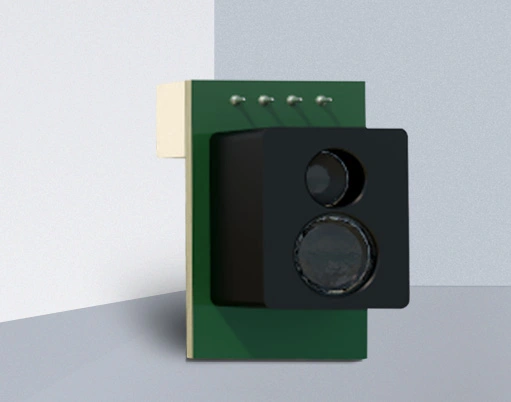
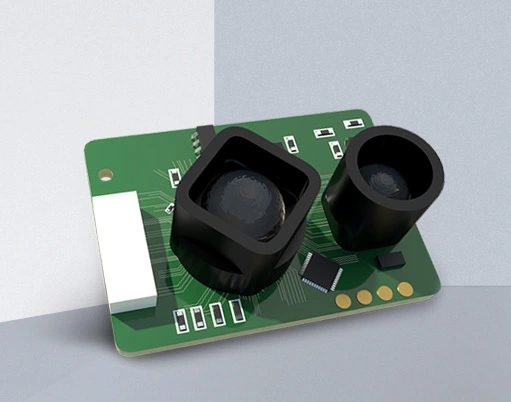
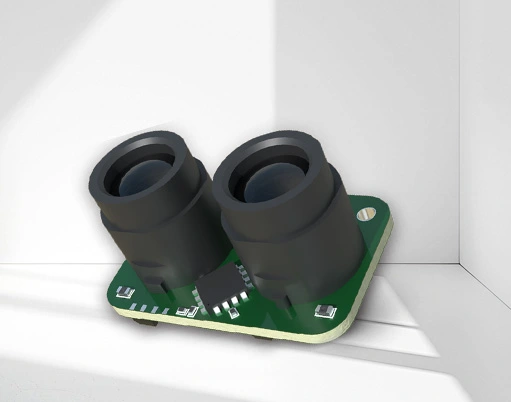
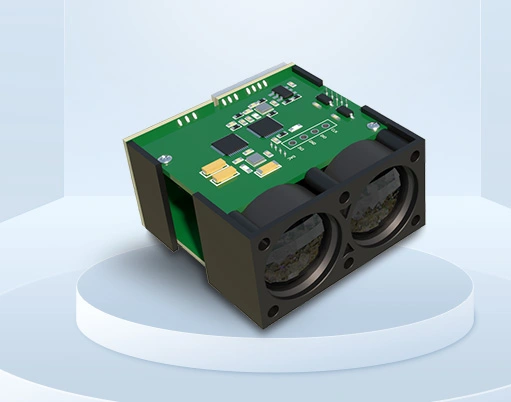
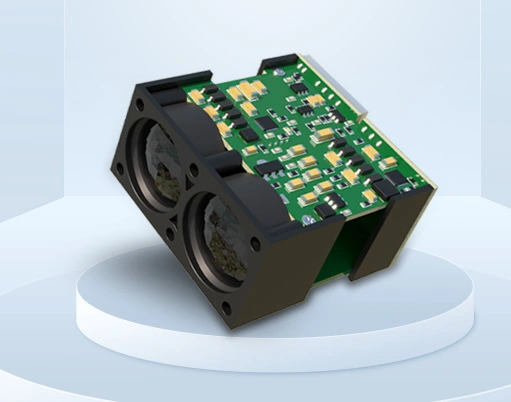
First, it's crucial to understand the components involved. A typical laser module for Arduino consists of a laser diode, a driver circuit, and often a lens to focus the beam. These modules usually operate at 5V, making them compatible with the Arduino's power output. The most common type is a red laser module with a power output below 5mW, which is relatively safe for indoor use but still requires careful handling. Always check your module's specifications before connecting it.
To get started, you'll need an Arduino board (such as the Uno or Nano), a laser module, a current-limiting resistor (if not integrated into the module), and jumper wires. Begin by identifying the laser module's pins: VCC (power), GND (ground), and possibly a signal pin for modulation. Connect VCC to the Arduino's 5V pin, GND to any GND pin, and if your module supports it, connect the signal pin to a digital pin like pin 9. If your module lacks an internal resistor, add one in series (typically 100-220 ohms) to prevent damage from overcurrent.
With the hardware set up, the next step is programming. The Arduino IDE provides a simple environment to control the laser. For basic on/off functionality, use thedigitalWrite() function. For example, setting a digital pin to HIGH turns the laser on, and LOW turns it off. You can create patterns by combining delays and toggling states. If your module supports PWM (Pulse Width Modulation), you can adjust brightness usinganalogWrite() on a PWM-capable pin, allowing for effects like fading.
Safety cannot be overstated when working with lasers. Even low-power modules can cause eye injury if mishandled. Always wear appropriate laser safety goggles, avoid pointing the beam at people or reflective surfaces, and keep the laser away from flammable materials. For projects involving higher-power lasers (above 5mW), additional precautions and local regulations may apply. It's best to start with low-power modules and gradually advance as you gain experience.
Once you're comfortable with the basics, explore project ideas to apply your skills. A simple beginner project is a laser tripwire alarm: position the laser to shine onto a photoresistor, and program the Arduino to trigger a buzzer when the beam is interrupted. For more advanced users, creating a laser engraver involves adding stepper motors and GRBL firmware to control movement. Other ideas include laser harps for musical interfaces or decorative lighting systems for events.
Troubleshooting common issues is part of the learning process. If the laser doesn't turn on, double-check connections and ensure the resistor is correctly placed. Flickering might indicate a loose wire or insufficient power. For coding errors, use the Serial Monitor to debug values. Remember that laser modules can heat up with prolonged use, so allow cooling periods in your projects.
In summary, integrating a laser module with Arduino is a rewarding way to delve into electronics. By following proper setup, coding, and safety practices, you can unlock creative potential across various applications. Start with simple experiments and gradually tackle complex builds to enhance your understanding.